Overview
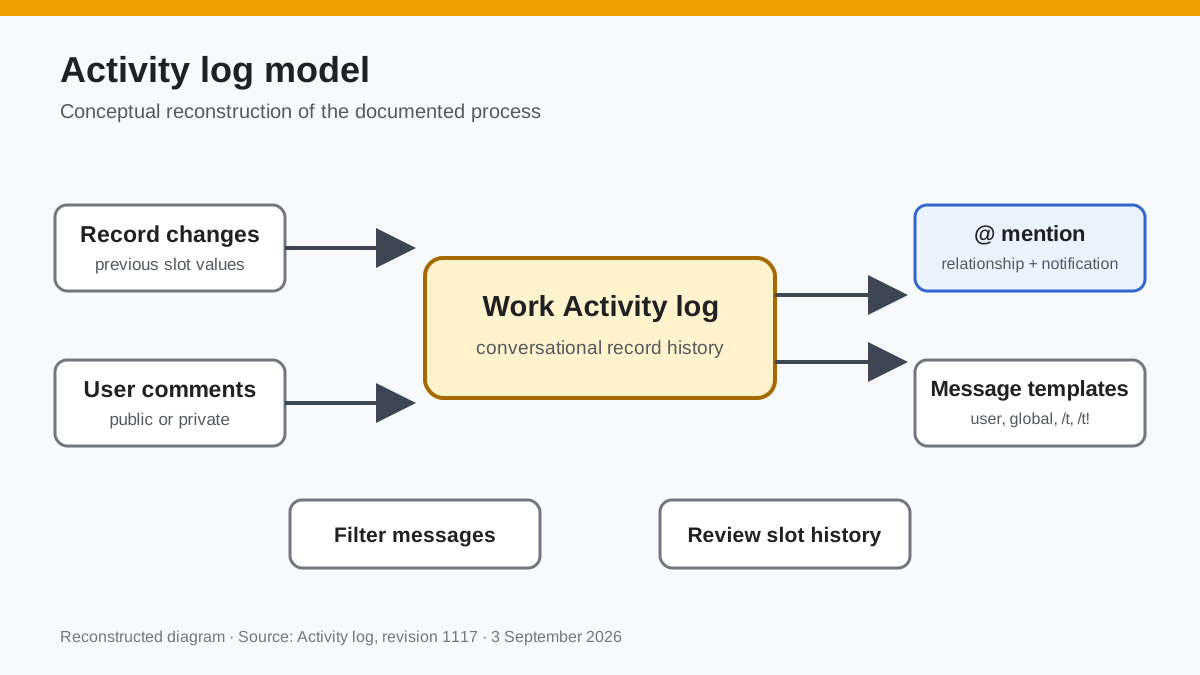
The activity log (Work Activity component) tracks changes to a record's values and logs any comments that users may enter against the record. This component is generally used in conjunction with the Work Title component to create the conversational view of a form such as the incident form in Dreamtsoft's service management bundle.
 Documentation image “Activity_log_1.png” is unavailable.
Comments
- Entering text in the text box of the activity log will record a comment against the current record.
- To attach a file click the paperclip icon and select attach file.
- To enter full edit mode with rich text editing options, click on the paperclip and select full edit mode.
- Comments can be public or private by clicking the toggle below the lower right corner of the text box.
 Documentation image “Private_public.png” is unavailable.
- Private comments intended to be public can be changed by clicking on the Public/Private indicator in the log.
 Documentation image “Public_private_change.png” is unavailable.
- Important comments can be flagged with a star icon for easier retrieval
 Documentation image “Important_comment.png” is unavailable.
- To filter the data click the filter icon and select the messages you want to see
 Documentation image “Comment_filter.png” is unavailable.
- To view the previous values of a slot value click the book icon next to the slot history comment
 Documentation image “Comment_history.png” is unavailable.
Mentions
- Users have the ability to @ Mention other users bringing them into the conversation of the record.
 Documentation image “Mention_at.png” is unavailable.
- The @ mention will create a relationship to the record
 Documentation image “Mention_relationship.png” is unavailable.
- A push notification is also created and will appear in the notifications bar component
 Documentation image “Push_notification.png” is unavailable.
Templates
Message templates can be created to quickly send a repeatable consistent response to an end user. Technicians can create individual templates they own and Administrators can build global templates for all technicians to use.
- Users can click on on the paperclip icon and select user a template to open the template management screen.
 Documentation image “Use_a_template.png” is unavailable.
- For quick access to templates user can enter the slash command /t followed by the template code (/t 123) to open the template management screen.
- For even quicker template access users enter the slash command /t! followed by the template code (/t! 123) and it will enter the template into the activity log.
 Documentation image “Template_code.png” is unavailable.
Creating a new user message template
- Creating an individual template
- Once a user opens the template management screen they can enter create a new template
- Title - The title of the template
- Code - Code used for the / command to access template
- Template - Message to be sent to the end user
- Once a user opens the template management screen they can enter create a new template
 Documentation image “Message_template.png” is unavailable.
Creating a new global message template
- Administrators can navigate to the list of all message templates by going to the page list.default.message.template
- Creating a new template without choosing a user will create a global template
Administration
- Clicking the admin pencil icon and editing the Work Activity component provides the following attributes:
- Hide filters - Hides the filters in the history log
- Templates bucket - Chose the bucket where your message templates are saved
- Comments entered into the text editor are saved in a bucket named "speaks".
- The ability to see private comments (speaks) is controlled by the Speaks access control under the security menu.
- Emails sent by making a comment are controlled by Notification Actions.
Update Activity Log Via Script
var SpeakLogs = require('work_activity_log/SpeakLogs');
var speakLogs = new SpeakLogs();
var recordId = 1; // populate record id here
var bucketId = 'somebucketid'; // populate bucket id here
var userId = 1; // populate user id here
var message = 'Some message goes here';
/**
 *  if message is plain text
 */
speakLogs.saveSpeakAsPlainText(recordId, bucketId, message, userId);
/**
 * if message is of Quill content type (Basically if the Quill Widget was used to generate the message)
 */
//speakLogs.saveSpeakAsQuillContent(recordId, bucketId, message, userId);
Reconstructed diagram
Reconstructed diagram: a conceptual visualization of the process described on this page.